Users
The Users API provides operations to manage users in your org.
Note: Some of the curl code examples on this page include SSWS API token authentication. However, Okta recommends using scoped OAuth 2.0 and OIDC access tokens to authenticate with Okta management APIs. OAuth 2.0 and OIDC access tokens provide fine-grain control over the bearer's actions on specific endpoints. See Okta API authentication methods.
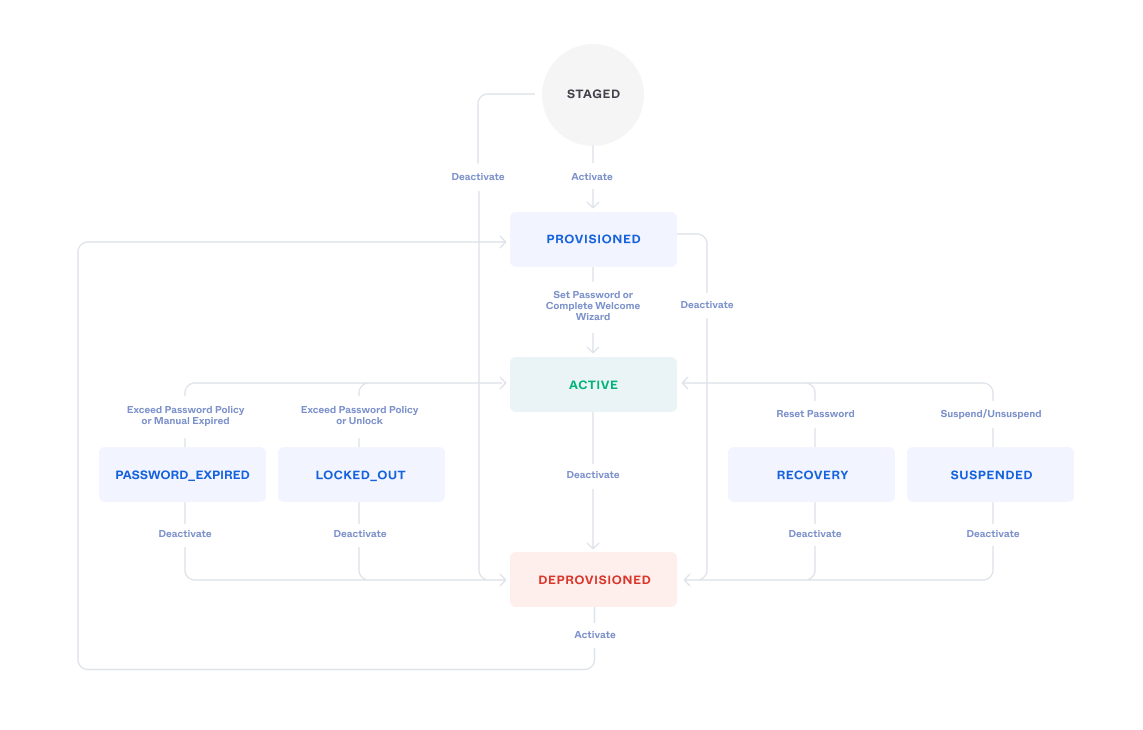
The following table describes the user experience and expectation of user status and welcome screen, depending on which options (security question and answer, password, and activate query) are defined during user creation.
User creation details and outcomes
| Security Q & A | Password | Activate Query Parameter | User Status | Login Credential | Welcome Screen |
|---|---|---|---|---|---|
| FALSE | STAGED | ||||
| TRUE | PROVISIONED or ACTIVE | One-Time Token (Email) or Email | X | ||
| X | FALSE | STAGED | |||
| X | TRUE | PROVISIONED or ACTIVE | One-Time Token (Email) or Email | X | |
| X | FALSE | STAGED | |||
| X | TRUE | ACTIVE | Password | X | |
| X | X | FALSE | STAGED | ||
| X | X | TRUE | ACTIVE | Password |
Creating users with a FEDERATION or SOCIAL provider sets the user status to either ACTIVE or STAGED based on the activate query parameter since these two providers don't support a password or recovery_question credential.
More information about the use cases are in the following sections and in the examples for Create a user.
When making the password optional, the user status following user creation can be affected by the enrollment policy. See Create an authenticator enrollment policy.
Based on the group memberships that are specified when the user is created, a password may or may not be required to make the user's status ACTIVE. The groups assigned to the user determines the enrollment policy applied to the user. If the enrollment policy has the password authenticator set to required, then the user's status is determined by if the user is created with a password:
- Created with a password - the user status is set to
PROVISIONEDand a One-Time Token is sent to the user through email - Created without a password - the user status is set to
ACTIVEand they can immediately sign in using their password authenticator
If the user doesn't have an enrolled authenticator, Okta sets the user to PROVISIONED and sends an activation link. The user must click the activation link before they can sign in. The activation link provides a baseline assurance that can be used to enroll in other authenticators. If the user has one or more enrolled authenticators at activation time, they're set to ACTIVE and can sign in directly.
See Passwordless authentication in the help documentation.
Creates a user without a password or a recovery question and answer.
If appropriate, when the user is activated, an email is sent to the user with an activation token that the user can use to complete the activation process.
This is the default flow for new user registration using the Admin Console.
Creates a user without a password.
When the user is activated, an email is sent to the user with an activation token that can be used to complete the activation process. This flow is useful if migrating users from an existing user store.
Creates a user without a recovery question and answer.
The new user is able to sign in after activation with the assigned password. This flow is common when developing a custom user registration experience.
Important: Don't generate or send a one-time activation token when activating users with an assigned password. Users should sign in with their assigned password.
Note: You can also use this scenario to create a user without sending an activation email. See this Knowledge Base article.
Creates a user with a specified hashed password.
The new user is able to sign in after activation with the specified password.
This flow is common when migrating users from another data store in cases where we want to allow the users to retain their current passwords.
Important: Do not generate or send a one-time activation token when activating users with an imported password. Users should login with their imported password.
Creates a user with a Password Hook object specifying that a password inline hook should be used to handle password verification.
The password inline hook is triggered to handle verification of the end user's password the first time the user tries to sign in, with Okta calling the password inline hook to check that the password the user supplied is valid. If the password is valid, Okta stores the hash of the password that was provided and can authenticate the user independently from then on. See Create a password import inline hook for more details.
The new user is able to sign in after activation with the valid password. This flow supports migrating users from another data store in cases where we wish to allow the users to retain their current passwords.
Important: Don't generate or send a one-time activation token when activating users with an password inline hook. Users should sign in with their existing password to be imported using the password import inline hook.
Creates a new user with a password and recovery question and answer.
The new user is able to log in with the assigned password after activation. This flow is common when developing a custom user-registration experience.
Important: Don't generate or send a one-time activation token when activating users with an assigned password. Users should login with their assigned password.
Creates a new passwordless user with a SOCIAL or FEDERATION authentication provider that must be authenticated through a trusted identity provider.
Creates a user that is added to the specified groups upon creation.
Use this in conjunction with other create operations for a group admin that's scoped to create users only in specified groups. The request can specify up to 20 group IDs. (This limit applies only when creating a user. You can add the user later to more groups.)
Creates a user with a specified user type. You can include the type specification with any of the above Create user operations. This example demonstrates creating a user without credentials. The user type determines which Schema applies to that user. After you create a user, you can assign the user a different user type using the full replacement PUT operation.
The links object specifies link relations. See _links.
Note: This links object is different from linked objects.
For an individual user result, the links object contains a full set of link relations available for that user as determined by your policies. For a collection of users, the links object contains only the self link. Operations that return a collection of users include List all users and List all member users.
The following table shows some links that may be available on a user, as determined by your policies:
| Link Relation Type | Description |
|---|---|
| self | A self-referential link to this user |
| activate | Lifecycle action to activate the user |
| deactivate | Lifecycle action to deactivate the user |
| suspend | Lifecycle action to suspend the user |
| unsuspend | Lifecycle action to unsuspend the user |
| resetPassword | Lifecycle action to trigger a password reset |
| expirePassword | Lifecycle action to expire the user's password |
| resetFactors | Lifecycle action to reset all MFA factors |
| unlock | Lifecycle action to unlock a locked-out user |
| forgotPassword | Resets a user's password by validating the user's recovery credential. |
| changePassword | Changes a user's password validating the user's current password |
| changeRecoveryQuestion | Changes a user's recovery credential by validating the user's current password |